
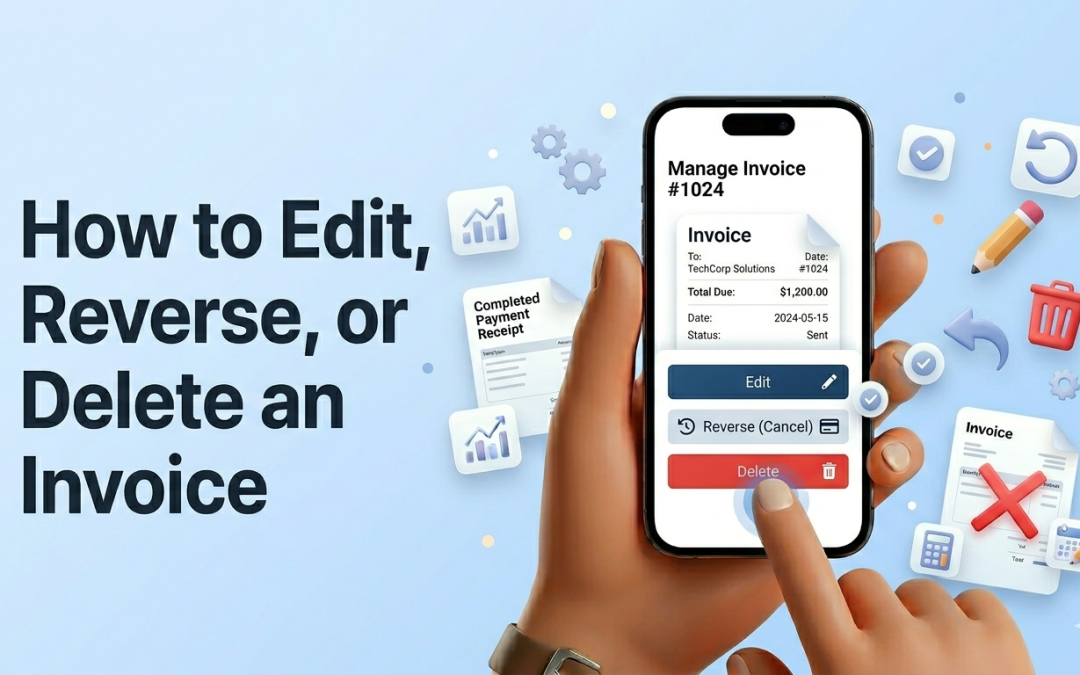
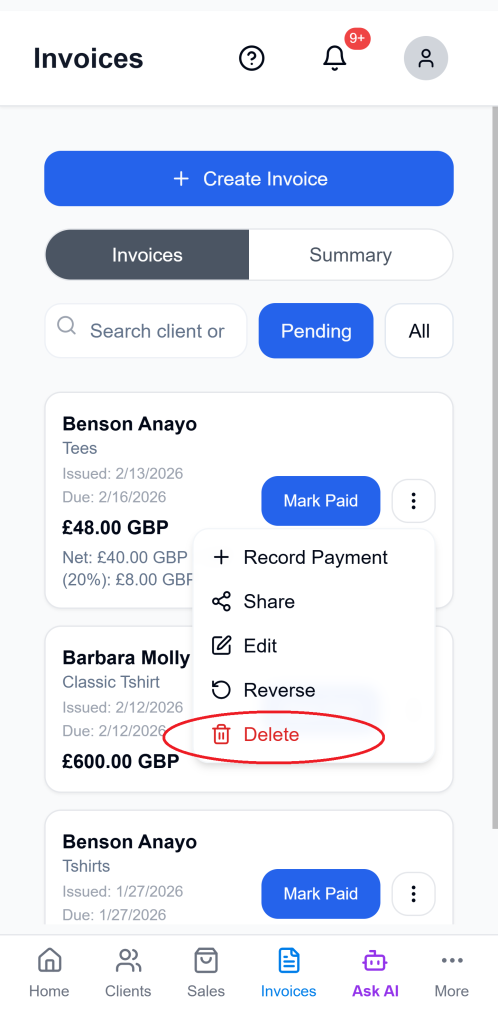
Managing invoices on Ledgar is straightforward on mobile. From the invoice list, you can open the 3-dot menu on any invoice card to access actions like Edit, Reverse, and Delete.
These tools help you correct invoice details, reverse an invoice that should no longer remain active, or remove an invoice completely when needed. Ledgar also shows a confirmation step before reverse and delete actions are completed.
When to use each option
Use Edit when you need to change invoice details such as the client, item rows, dates, descriptions, VAT settings, or totals. The edit flow loads the existing invoice data back into the invoice form so you can update it and save again.
Use Reverse when you want to cancel the invoice without treating it like a normal active invoice anymore. Ledgar has a dedicated reverse action and success message for reversed invoices.
Use Delete when you want to remove the invoice entirely. Ledgar has a separate delete action and success message for deleted invoices.
How to edit an invoice on Ledgar
1. Open the Invoices page
Open Ledgar on your phone and go to Invoices. Find the invoice you want to change in your invoice list.
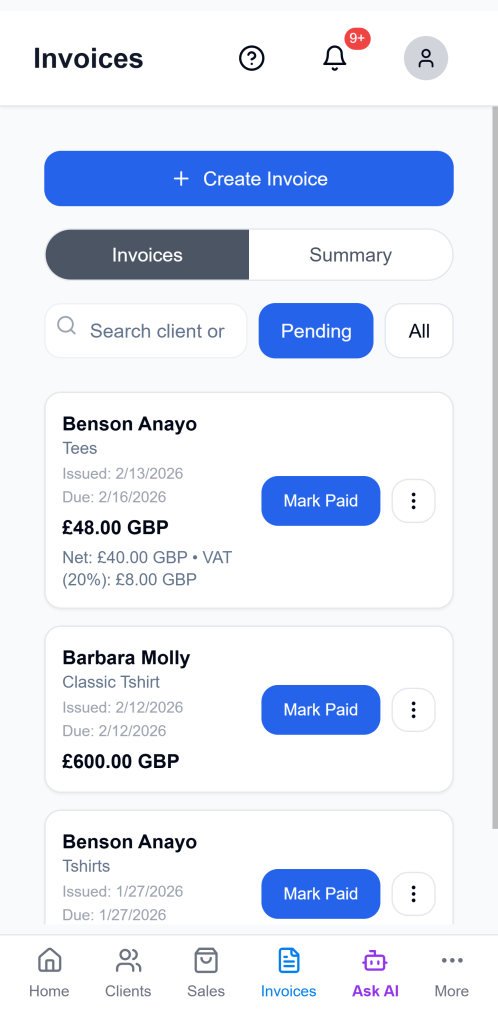
2. Tap the 3-dot menu
On mobile, invoice actions are grouped inside the 3-dot menu on each invoice card. Tap that menu to open the available options.

3. Tap “Edit”
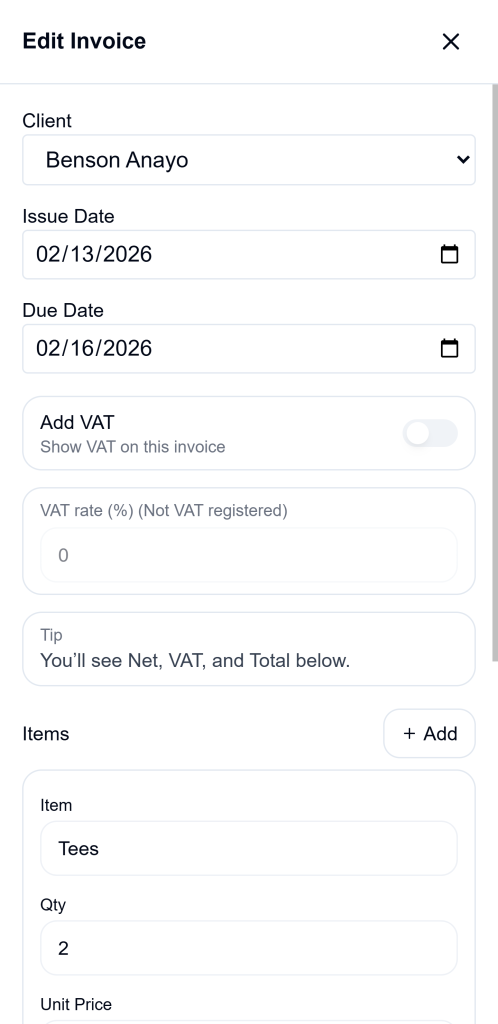
Select Edit from the menu. Ledgar opens the invoice form in edit mode.
4. Update the invoice details
When the form opens, Ledgar pre-fills the invoice using the existing saved data, including:
- client
- invoice items
- quantity
- unit price
- amount
- optional item descriptions
- invoice description
- currency
- issue date
- due date
- VAT settings
This makes it easier to correct an invoice from your phone without starting from scratch.
5. Save your changes
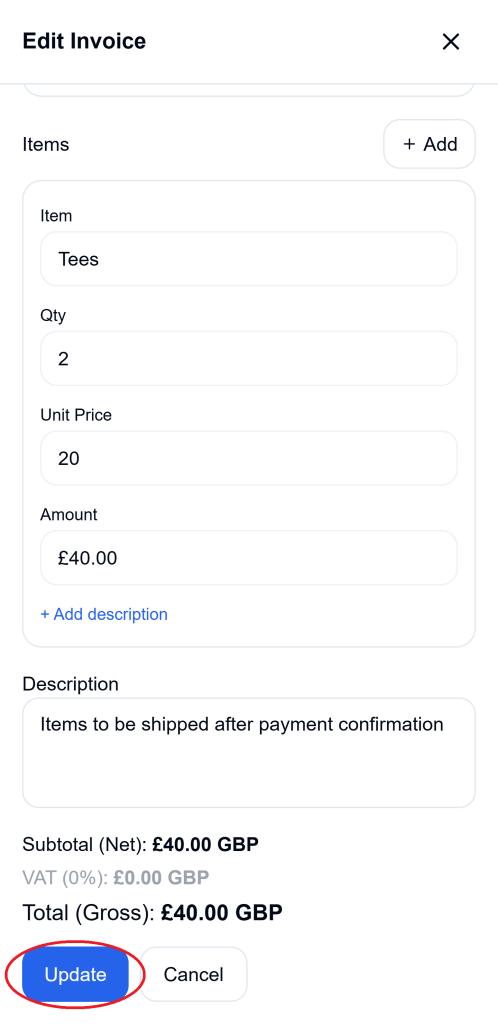
After making your changes, tap the Update button. Ledgar updates the invoice, refreshes the invoice list, and reloads related invoice summaries and reports after a successful update.
How to reverse an invoice payment on Ledgar
1. Open the invoice menu
Find the invoice in your list and tap the 3-dot menu. On mobile, Reverse appears in this menu together with the other invoice actions.
2. Tap “Reverse”
Choose Reverse from the menu. Ledgar opens a confirmation step before finishing the action.

3. Confirm the reversal
Once confirmed, Ledgar processes the reversal, refreshes the invoice list, and shows a success message that the invoice has been reversed.
How to delete an invoice on Ledgar
1. Open the invoice menu
Go to the invoice card and tap the 3-dot menu. On mobile, Delete is also available in that same menu.
2. Tap “Delete”
Select Delete from the menu. Ledgar treats this as a separate action from reversing, so it has its own confirmation and completion flow.
3. Confirm the deletion
After you confirm, Ledgar deletes the invoice, refreshes the invoice list, and shows a success message.
What happens after you edit, reverse, or delete an invoice
After any of these actions, Ledgar refreshes:
- the invoice list
- invoice summary data
- related report data
This helps make sure the changes appear immediately in the app.
Helpful mobile tips
When working from your phone, the easiest way to manage invoices is to stay in the invoice list and use the 3-dot menu on each card instead of switching between multiple screens. Ledgar’s mobile menu is designed to keep the main invoice actions close to each invoice.
If you only need to fix a detail, choose Edit. If an invoice payment was recorded in error, choose Reverse. If you want to remove it completely, choose Delete.
Troubleshooting
I cannot find the Edit option
On mobile, Edit is inside the 3-dot menu on the invoice card.
I changed the invoice but do not see the update immediately
Ledgar refreshes invoices after a successful save. If your network is slow, give the page a moment to reload the updated data.
What is the difference between Reverse and Delete?
Ledgar treats them as two separate actions. Reverse reverses any payment recorded on the invoice through the reversal flow and it becomes and active invoice again, while Delete removes it through the deletion flow. Each has its own confirmation and success message.
Will editing keep the existing invoice details?
Yes. When you tap Edit, Ledgar loads the existing client, item rows, dates, description, currency, and VAT settings back into the form so you can update them.
Final thoughts
Ledgar makes invoice management simple on mobile. In just a few taps, you can edit an invoice, reverse it, or delete it directly from the invoice card menu. That makes it easier to keep your records accurate even when you are working from your phone.