by ledgar | Apr 15, 2026 | Help Center
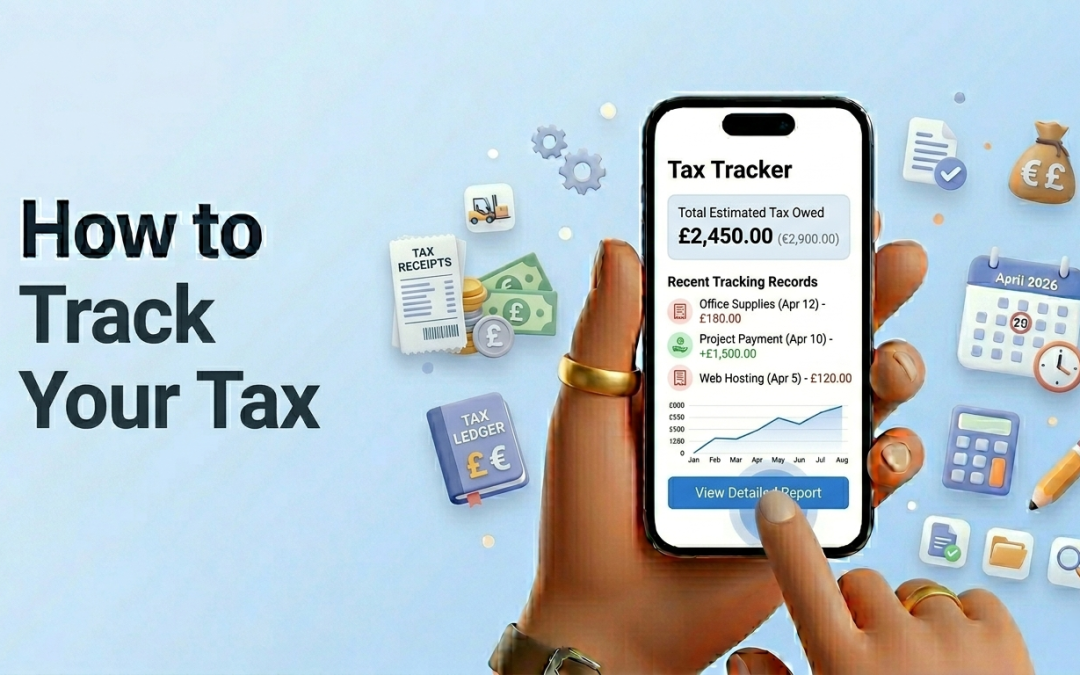
If you run a small business, one of the easiest ways to get into trouble is losing track of how much tax you have collected, how much you may owe, and how much you should set aside before payment deadlines arrive. In this case, Ledgar AI works like a tax tracking app...

by ledgar | Apr 15, 2026 | Help Center
If you want more accurate tax records in Ledgar, one of the first things to do is set up your Tax Hub properly. This helps Ledgar use the right VAT and tax settings when estimating what your business may need to set aside. The Tax Hub lets you turn tax on, choose your...
by ledgar | Apr 15, 2026 | Help Center
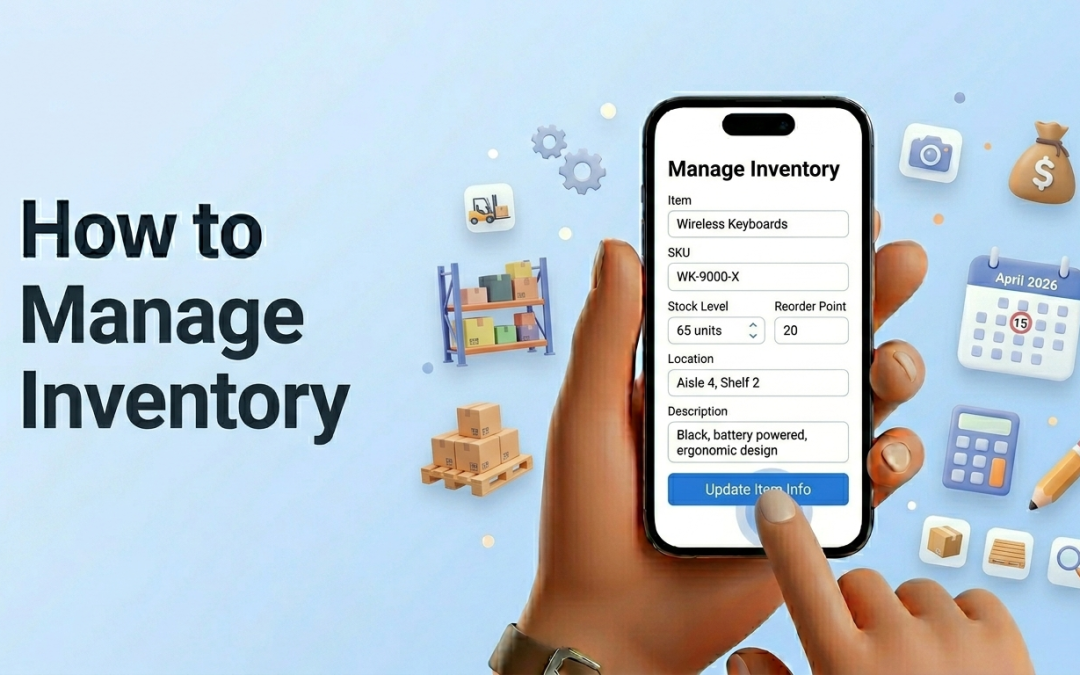
Ledgar’s Inventory page helps you keep track of the items your business sells or stores. From the app, you can add new items, set opening stock, monitor low stock, spot oversold items, edit item details, delete old items, and record stock movements in one place. The...
by ledgar | Apr 10, 2026 | Help Center
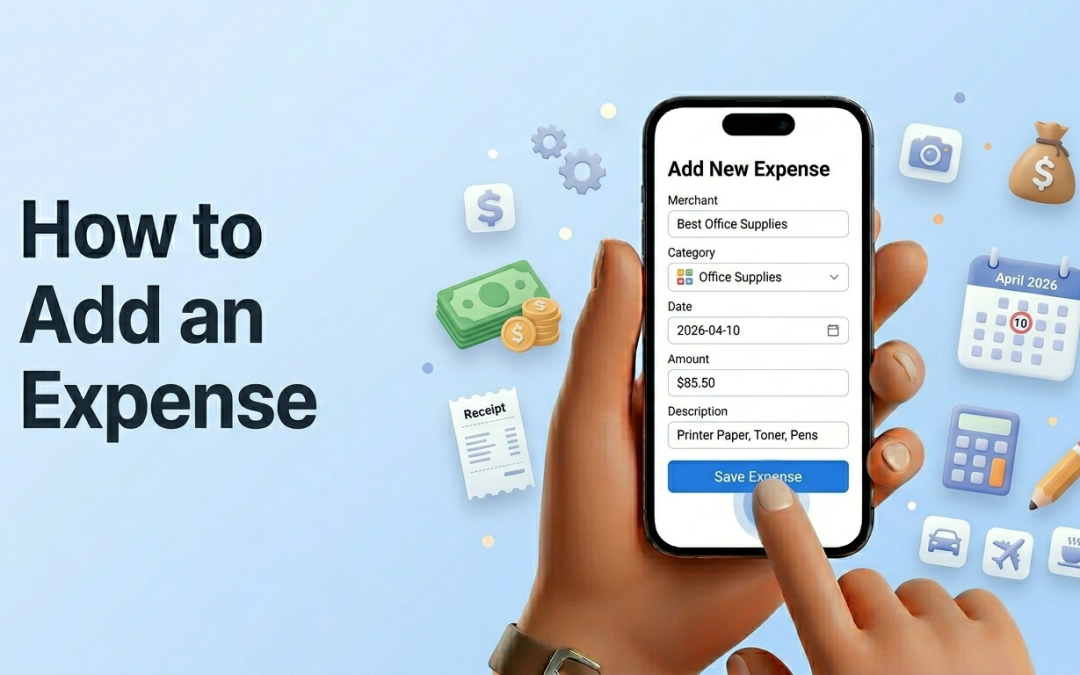
Adding expenses on Ledgar helps you keep a clear record of what your business is spending. On mobile, the Expenses screen is built to make this fast: the Add Expense button is prominent at the top of the page and opens a full-screen expense form that is easy to use on...
by ledgar | Apr 10, 2026 | Help Center
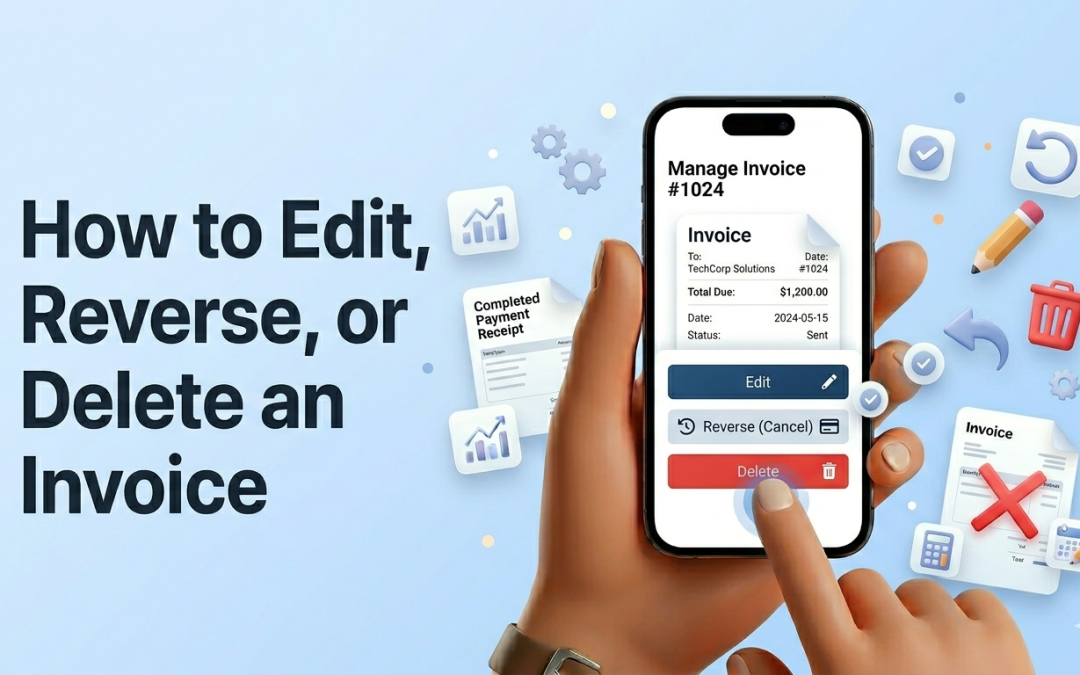
Managing invoices on Ledgar is straightforward on mobile. From the invoice list, you can open the 3-dot menu on any invoice card to access actions like Edit, Reverse, and Delete. These tools help you correct invoice details, reverse an invoice that should no longer...

by ledgar | Apr 2, 2026 | Help Center
Sharing an invoice on Ledgar is easy from your phone. On mobile, invoice actions are placed inside the 3-dot menu on each invoice card, and one of those actions is Share. When you tap it, Ledgar opens a Share & Export screen with options to send the invoice by...