
Ledgar’s Inventory page helps you keep track of the items your business sells or stores. From the app, you can add new items, set opening stock, monitor low stock, spot oversold items, edit item details, delete old items, and record stock movements in one place.
The page also shows useful inventory summaries at the top, including total items, low stock count, total on-hand value, and oversold shortage where applicable.
What you can do in Inventory
On the Inventory page, Ledgar lets you:
- add a new item
- edit an existing item
- delete an item
- track or turn off inventory tracking for an item
- set opening stock when creating a new item
- adjust stock later through the Movements screen
- switch between All, Low stock, and Oversold views
This makes the page a good home for everyday inventory management on mobile.
How to add an inventory item on Ledgar
1. Open the Inventory page
Open Ledgar and go to Inventory.
At the top of the page, you will see your inventory summary cards and an Add Item button. On mobile, the button stretches full width, making it easy to tap.

2. Tap “Add Item”
Tap Add Item to open the item form.
Ledgar opens a modal titled Add Item where you can enter the item details.
3. Enter the item name
Type the item name in the first field.
Item name is required before the item can be saved.

4. Add optional item details
You can also fill in:
- SKU
- Category
- Description
These fields are optional, but they can make your inventory easier to organize later.
5. Enter the unit price
Add the item’s Unit price in your business currency.
Ledgar reads the currency from your settings and shows it beside the unit price field.
6. Set the minimum stock alert
Use Min stock alert to define the level at which the item should be considered low in stock. This helps Ledgar place the item under the Low stock view when the quantity drops to or below the minimum level.
7. Choose whether to track inventory
If you want Ledgar to monitor stock quantity for the item, leave Track inventory for this item turned on.
If you switch tracking off, the item still exists in your list, but it will not behave like a tracked stock item in the same way.
8. Enter opening stock
When creating a new item, you can enter Opening stock to set the starting quantity.
Ledgar records opening stock as an inventory movement when the item is first created.
[Insert screenshot: Opening stock field]
9. Save the item
Tap Save Item to finish.
After saving, Ledgar adds the item to your inventory list and refreshes the page data.

How to view your inventory clearly on mobile
Once items have been added, each inventory card shows key details such as:
- item name
- SKU
- category
- unit price
- stock quantity
- minimum stock
- stock value
- oversold shortage when applicable
At the top of the inventory list, you can switch between:
- All
- Low stock
- Oversold
This makes it easier to focus on items that need attention.

How to adjust stock on Ledgar
1. Tap “Movements” on an item
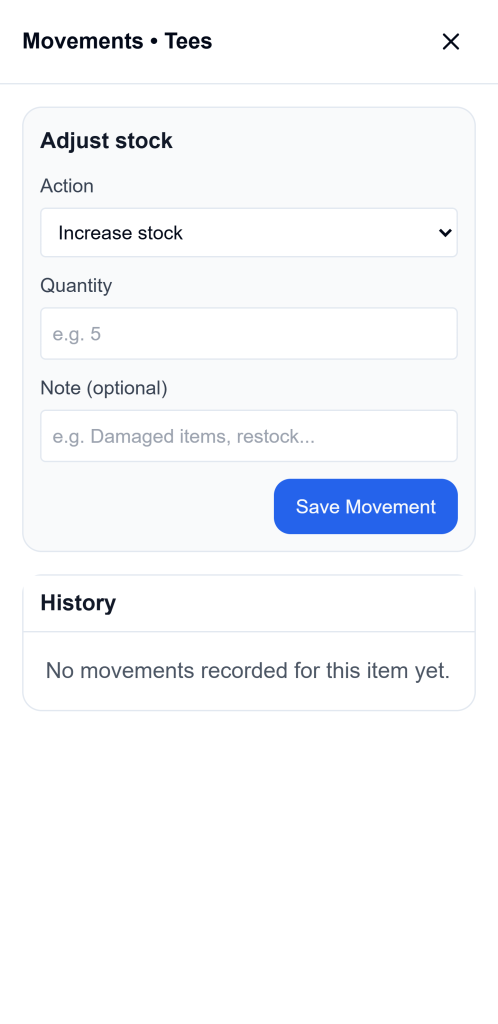
Every tracked inventory item has a Movements button. Tap it to open the stock history and adjustment screen for that item.

2. Choose the action
Inside the Movements screen, use the Action field to choose either:
- Increase stock
- Reduce stock
This makes stock adjustment easier on mobile because you can choose the direction first, then type a normal quantity.
3. Enter the quantity
Type the number of units you want to add or reduce.
Ledgar requires a valid quantity greater than zero before it will save the movement.
4. Add an optional note
Use the Note field for extra context, such as:
- damaged items
- restock
- stock count correction
5. Save the movement
Tap Save Movement to record the stock adjustment.
After saving, Ledgar refreshes both the inventory list and the movement history for that item.
How to view movement history
Below the stock adjustment section, Ledgar shows the item’s stock History. Each movement shows:
- movement type
- date
- note, if available
- quantity added or removed
This helps you understand how the stock level changed over time.

How to edit an inventory item
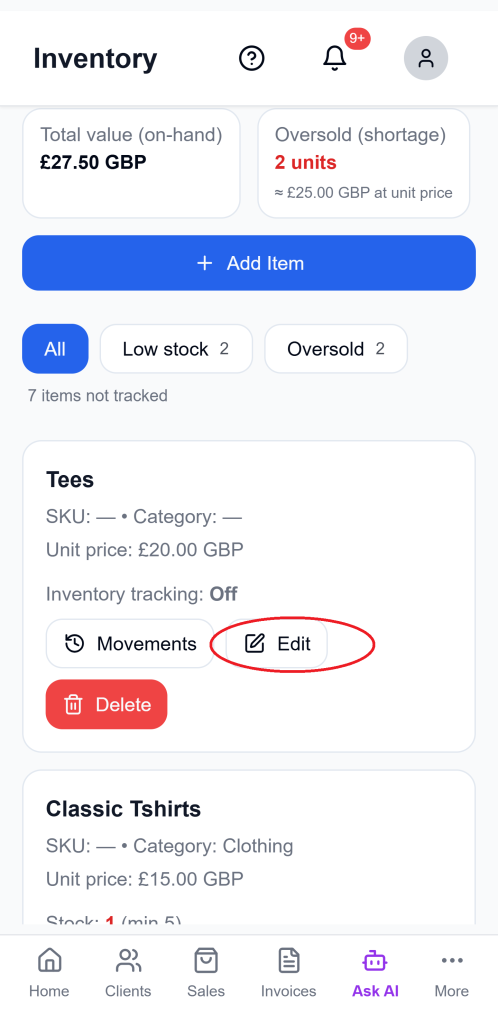
If you need to update an item later, tap Edit on the item card.
Ledgar opens the item form in edit mode and fills in the saved details, including name, SKU, category, description, unit price, minimum stock, and inventory tracking setting. Opening stock is not edited here; instead, stock changes after creation should be handled through Movements.

How to delete an inventory item
To remove an item, tap Delete on the item card.
Ledgar asks for confirmation before deleting the item from your inventory list.

Understanding low stock and oversold items
Ledgar separates stock issues into two helpful views:
- Low stock for tracked items that are at or below the minimum stock level, but not negative
- Oversold for tracked items whose stock has gone below zero
For oversold items, Ledgar also shows the shortage quantity and an estimated shortage value based on the unit price.
Helpful mobile tips
When adding a new item, fill the form in this order for a faster mobile workflow: item name, unit price, minimum stock, tracking setting, then opening stock.
If the item is something you do not want quantity tracking for, turn off inventory tracking so it stays in your records without affecting stock calculations.
Use the Low stock and Oversold views regularly so you can react quickly when stock runs low or drops below zero.
Troubleshooting
I cannot save the item
Make sure the item name is filled in. Ledgar requires an item name before saving.
I want to change stock after creating the item
Use Movements instead of editing opening stock. Opening stock is only used when the item is first created.
I do not see any movement history
The Movements screen will show “No movements recorded for this item yet” if nothing has been logged for that item.
My item is showing as oversold
That means the tracked stock quantity is below zero. Ledgar places such items in the Oversold view and shows the shortage amount separately.
Final thoughts
Ledgar makes inventory management practical on mobile. You can add items, monitor stock, adjust quantities, and keep an eye on low or oversold products without needing a desktop. For many small businesses, that makes daily stock management much easier.