by ledgar | Apr 2, 2026 | Help Center
If a client pays an invoice after you have already created it, you can update that invoice directly in Ledgar from your phone. The Invoices page supports both partial payments and full payment completion, so you can keep each invoice balance accurate as money comes...

by ledgar | Apr 2, 2026 | Help Center
Creating an invoice on Ledgar is simple, even when you are working from your phone. The Invoices page is set up for mobile use, with a full-width Create Invoice button on smaller screens, so you can quickly start a new invoice without needing a desktop. If you send...
by ledgar | Apr 1, 2026 | Help Center
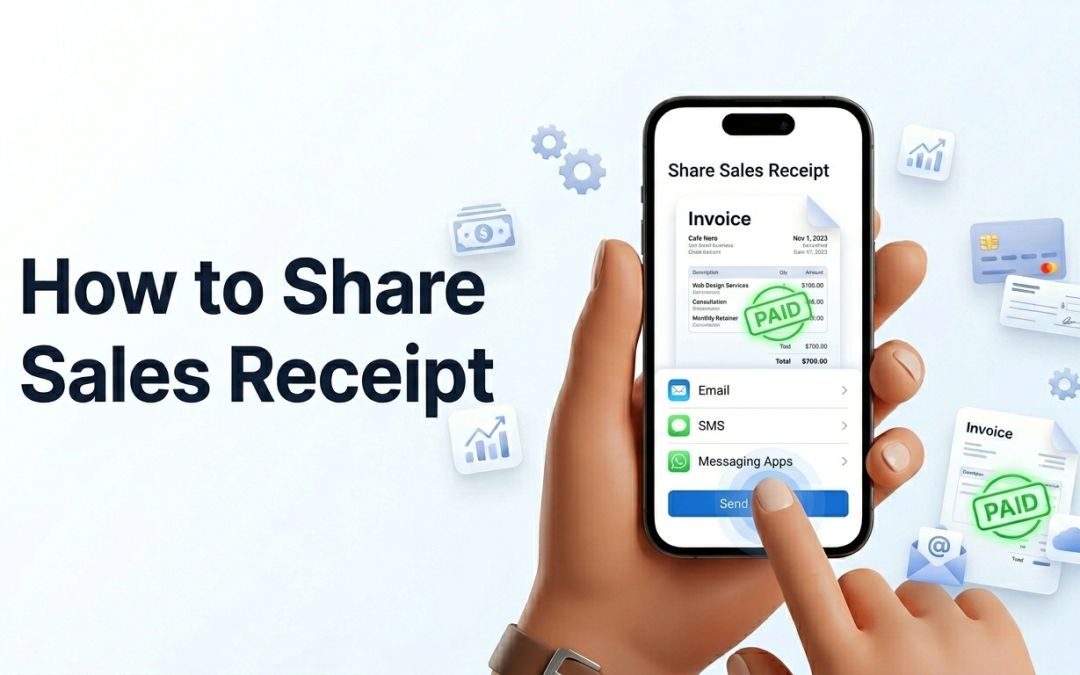
Ledgar makes it easy to send receipts to customers and keep a copy for your own records. From the share options menu on a sale, you can choose Email (PDF Receipt), WhatsApp (PDF Receipt), Download PDF, or Download CSV. Available receipt options When you open the...

by ledgar | Apr 1, 2026 | Help Center
Recording customer payments properly helps you keep your sales records accurate and your outstanding balances up to date. On the Sales page, Ledgar shows each sale’s total, status, amount paid, and remaining balance, and it provides both a Mark Paid button and a...

by ledgar | Apr 1, 2026 | Help Center
Adding a sale on Ledgar helps you keep accurate business records and track what you have sold. What this tutorial covers This guide focuses on creating a sale. It does not go deep into: recording later payments marking sales as fully paid sharing receipts exporting...

by ledgar | Apr 1, 2026 | Help Center
Keeping your client list organized is one of the easiest ways to stay on top of your sales and invoicing workflow. On Ledgar, the Clients page lets you add new clients, update their details, search for them later, view their notes, and open each client’s history. Why...