

If a client pays an invoice after you have already created it, you can update that invoice directly in Ledgar from your phone. The Invoices page supports both partial payments and full payment completion, so you can keep each invoice balance accurate as money comes in.
On mobile, invoice actions are placed inside the 3-dot menu on each invoice card, including the Record Payment option when an invoice still has money outstanding.
When to use this feature
Use this when:
- a client pays part of an invoice
- a client clears the full remaining balance
- you want the invoice status and outstanding amount to stay up to date
Ledgar determines invoice status from the amount paid against the invoice total, so invoices can appear as Unpaid, Partially Paid, or Paid.
How to record a payment on an invoice from your phone
1. Open the Invoices page
Open Ledgar and go to Invoices. Find the invoice you want to update. The invoice list is designed for card-based viewing, which works well on mobile screens.

2. Tap the 3-dot menu on the invoice
On smaller screens, invoice actions are inside the 3-dot menu on each invoice card. Tap that menu to open the available options.
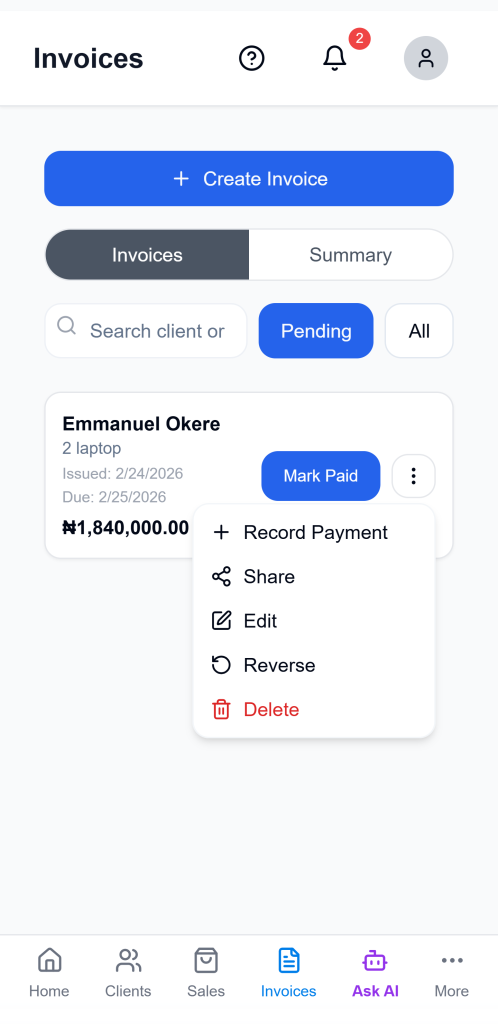
3. Tap “Record Payment”
If the invoice is not yet fully paid and still has a remaining balance, you will see Record Payment in the menu. Tap it to open the payment screen.
4. Review the remaining amount
When the payment modal opens, Ledgar uses the selected invoice and prepares the payment amount using the invoice’s remaining balance. This helps you quickly see what is still outstanding before saving the payment.
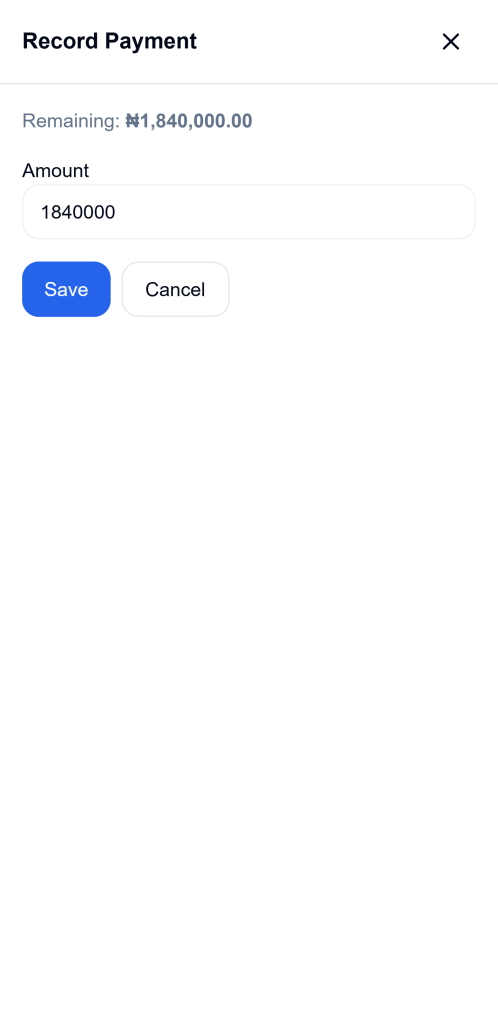
5. Enter the amount received
In the Amount field, type the amount the client has just paid. Ledgar records that amount against the invoice using the current date.
6. Tap Save
Tap Save to record the payment. Ledgar then updates the invoice data, refreshes invoice summaries, and closes the payment modal after the payment is saved successfully.
[Insert screenshot: Save button in Record Payment modal]
How to mark an invoice as fully paid
If the client has paid the full outstanding balance, you can mark the invoice as fully paid without typing the final figure manually.
Ledgar includes a Mark Paid action for invoices that still have money owing. When you use it, Ledgar calculates the remaining balance and records that exact amount, so the invoice becomes fully paid.
1. Find the invoice
Open the invoice you want to complete from the Invoices page.
2. Tap “Mark Paid”
Use Mark Paid when the client has settled the full remaining balance. Ledgar prevents this action on invoices that are already marked Paid or Reversed.
3. Let Ledgar update the balance
Ledgar calculates the remaining amount automatically and records it as payment, then refreshes the invoice list and related invoice summaries.
[Insert screenshot: Mark Paid action on invoice]
What changes after you record a payment
After payment is recorded, the invoice’s paid amount and status are updated. Ledgar derives the visible status from the invoice total and active payments, so the invoice can display as:
- Unpaid
- Partially Paid
- Paid
This helps you see at a glance which invoices still need follow-up and which ones are complete.
Helpful mobile tips
When you are working from your phone, it is easiest to handle invoice payments directly from the invoice card you are viewing instead of opening several screens. The mobile 3-dot menu keeps the action close to the invoice, which makes payment updates quicker on smaller screens.
For partial payments, enter only the amount the client has paid so far. For final settlement, Mark Paid is the fastest option.
Troubleshooting
I cannot see the Record Payment option
The option only appears when the invoice is not already Paid or Reversed, and when there is still an amount remaining.
I want to record the full balance quickly
Use Mark Paid. Ledgar calculates the outstanding amount and records it automatically.
I want to record only part of the payment
Use Record Payment and type the exact amount received in the payment modal.
Will the invoice list update after I save?
Yes. Ledgar refreshes invoice data and invoice summaries after payment is recorded.
Final thoughts
Recording invoice payments on Ledgar is straightforward on mobile. A few taps are enough to update an invoice, keep the balance correct, and make sure your payment status reflects what the client has actually paid.