
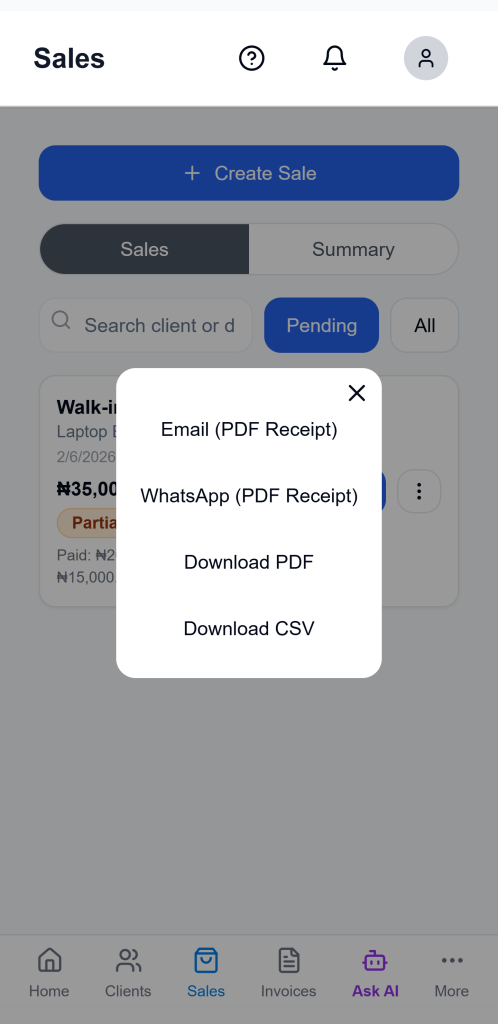
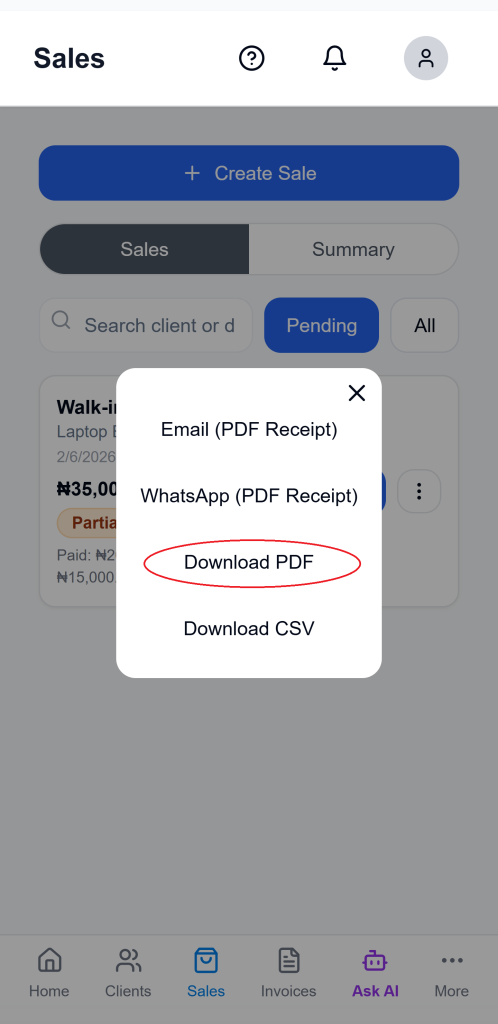
Ledgar makes it easy to send receipts to customers and keep a copy for your own records. From the share options menu on a sale, you can choose Email (PDF Receipt), WhatsApp (PDF Receipt), Download PDF, or Download CSV.
Available receipt options
When you open the receipt-sharing menu for a sale, Ledgar gives you four options:
- Email the receipt as a PDF
- Share the receipt on WhatsApp as a PDF
- Download the receipt as a PDF
- Download the receipt as a CSV
These options appear together in the share modal for each sale.
How to share a sales receipt by email
1. Open the Sales page
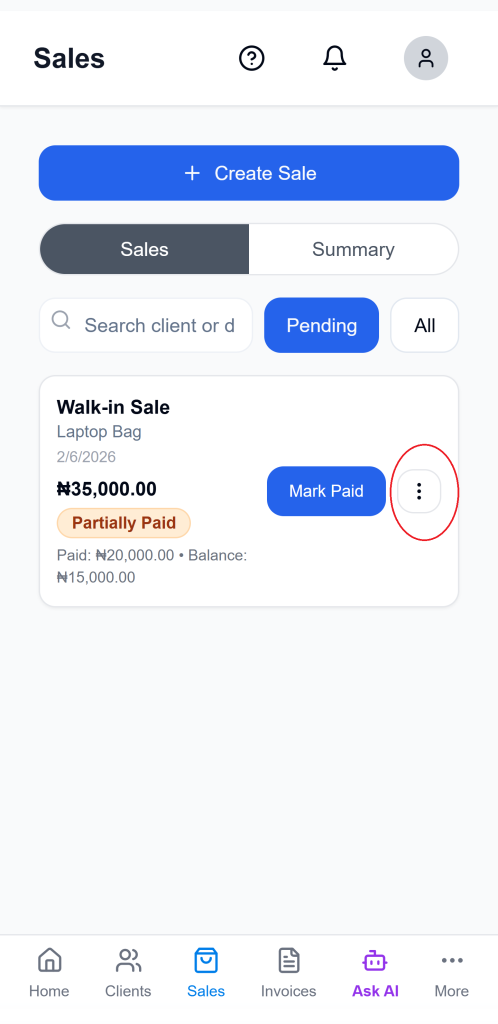
Go to the Sales section and locate the sale whose receipt you want to share.
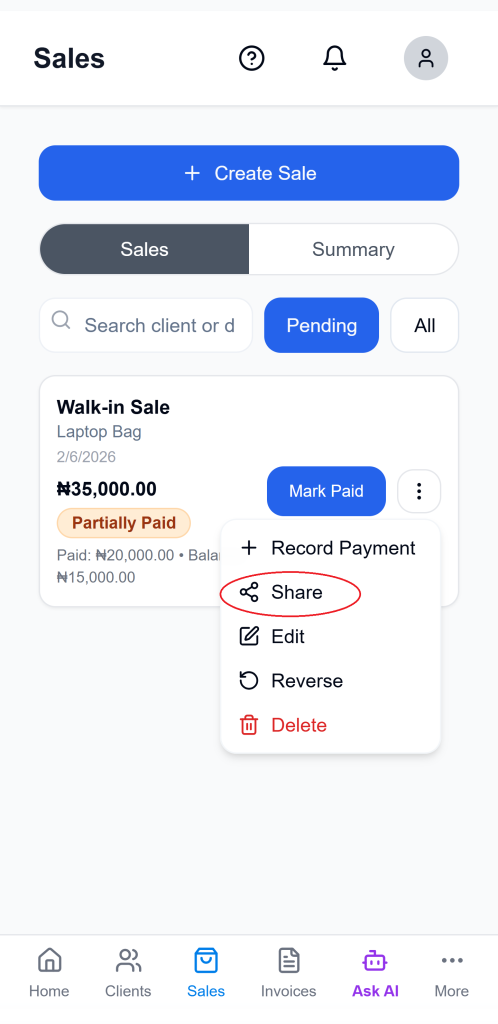
2. Open the receipt-sharing options
Select the share option for the sale to open the receipt-sharing menu. The menu includes the email option for sending a PDF receipt.
3. Choose “Email (PDF Receipt)”
Click Email (PDF Receipt). Ledgar generates a PDF version of the receipt before sending it.
4. Make sure the client has an email address
To send a receipt by email, the selected sale must have a client email available. If the client email is missing, the email share flow cannot continue.
How to share a sales receipt on WhatsApp
1. Open the receipt-sharing menu
Find the sale, open the share options, and select WhatsApp (PDF Receipt).
2. Let Ledgar generate the receipt
Ledgar creates the receipt as a PDF before sharing it.
3. Share the receipt
On the native app, Ledgar shares the PDF as a real file attachment that can be sent through WhatsApp.
How to download a receipt as PDF
1. Open the receipt-sharing menu
Go to the sale and open the share options.
2. Choose “Download PDF”
Select Download PDF. Ledgar generates a branded PDF receipt for that sale.
3. Save or open the file
On the native app, Ledgar attempts to open the PDF in a device viewer after preparing it.
How to download a receipt as CSV
1. Open the receipt-sharing menu
Locate the sale and open the available receipt options.
2. Choose “Download CSV”
Select Download CSV. Ledgar builds a CSV version of the receipt data from the sale items.
3. Save the file
The exported CSV includes the sale line items and summary rows for Total, Paid, and Balance, then downloads the file to your device.
What information Ledgar uses in the receipt
When preparing a receipt, Ledgar enriches the sale with available client details such as client name, email, and phone number before generating the output. The PDF filename also includes the business name and a timestamp.
Tips for sharing receipts professionally
Before emailing a receipt, make sure the client record includes the correct email address. For quick customer communication, WhatsApp is useful when you want to send the receipt immediately. PDF is best for a polished receipt document, while CSV is useful when you want a spreadsheet-style version of the sale data.
Troubleshooting
The email option is not working
Check that the client on the sale has an email address. The email-sharing flow requires one.
WhatsApp did not open the way I expected
On the native app, Ledgar shares the PDF file directly or fall back to opening WhatsApp with a receipt link.
I need a file I can print
Choose Download PDF.
I need a spreadsheet-friendly version
Choose Download CSV. The CSV export includes item rows along with total, paid, and balance lines.