

Recording customer payments properly helps you keep your sales records accurate and your outstanding balances up to date. On the Sales page, Ledgar shows each sale’s total, status, amount paid, and remaining balance, and it provides both a Mark Paid button and a Record Payment button when a sale still has an unpaid balance.
When to use this feature
Use this feature when a customer has paid for a sale in full, or when they have paid only part of what they owe. Ledgar supports both situations. A sale can be saved as Unpaid, Partially Paid, or Paid, and the payment information updates based on the amount recorded against the sale.
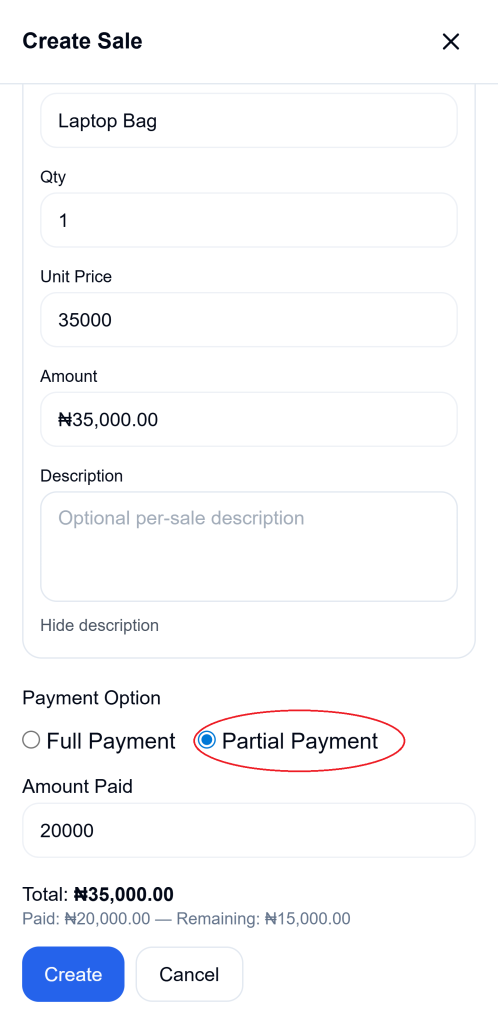
How to record a partial payment during sale creation
When creating or editing a sale, Ledgar can already take payment information into account. The sales form calculates the gross total, lets you enter an amount already paid, and shows both the amount paid and the remaining balance when partial payment is being used. The saved sale status then becomes Partially Paid if the recorded payment is more than zero but less than the full total.
How to record a payment after the sale has been created
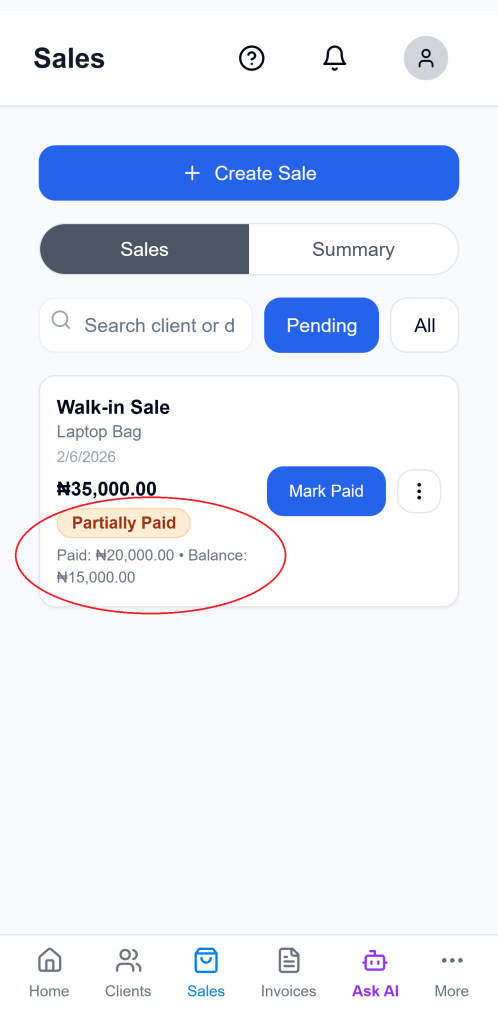
1. Open the Sales page
Go to the Sales section and find the sale you want to update. Each sale card shows the amount, current payment status, and, where applicable, the amount already paid and the remaining balance.
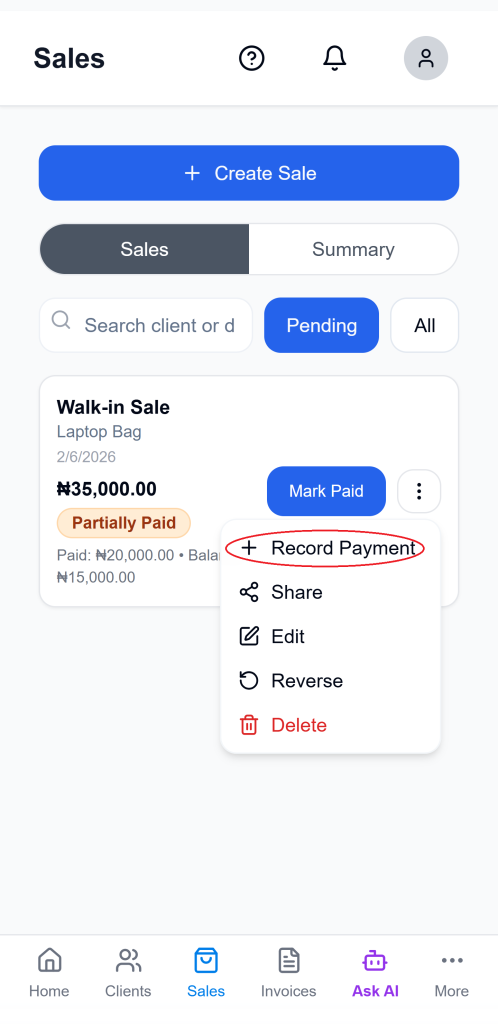
2. Click “Record Payment”
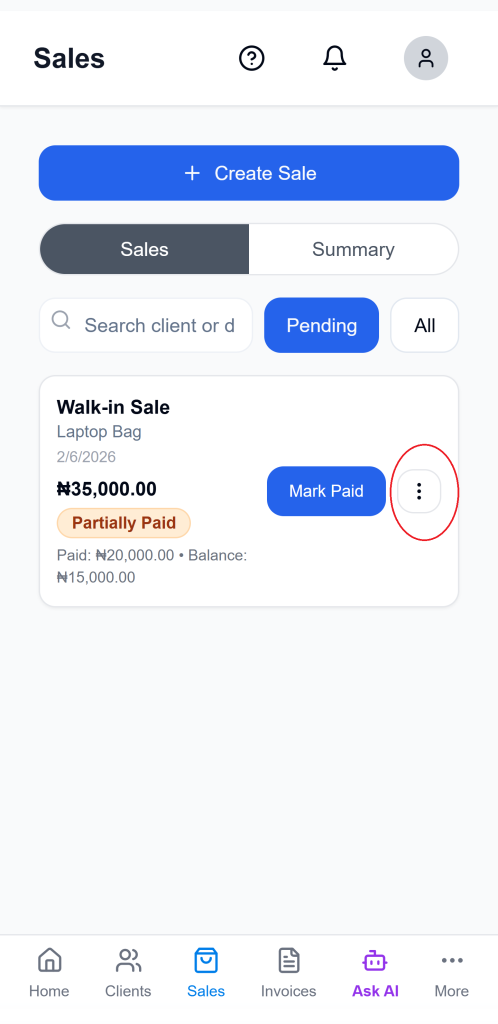
If the sale is not yet fully paid, tap the {3 dots) menu icon, then tap Record Payment.
3. Review the remaining balance
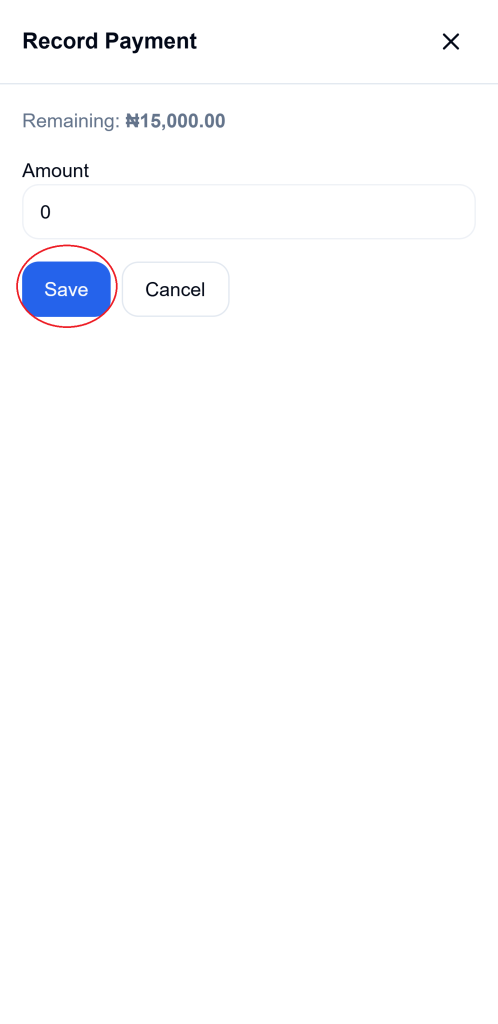
When the payment modal opens, Ledgar displays the Remaining amount at the top so you can see what is still outstanding before entering the new payment.
4. Enter the amount received
In the Amount field, type the amount the customer has just paid. The payment modal is designed specifically for entering that value against the selected sale.
5. Save the payment
Click Save to record the payment. Ledgar submits the payment against the sale with the current date, refreshes the sales data, and closes the payment modal when the action succeeds.
How to mark a sale as fully paid in one step
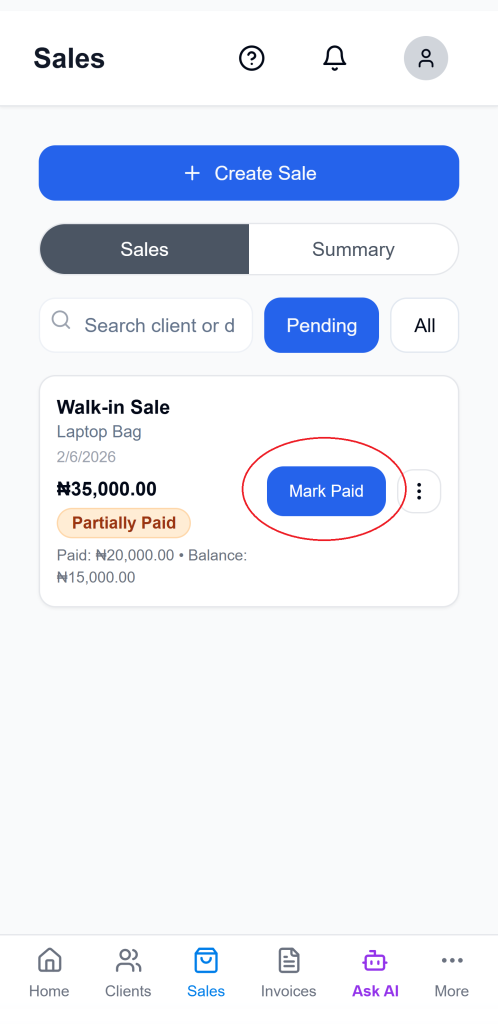
If you do not want to type the final amount manually, you can use Mark Paid. On sales that still have an outstanding balance, Ledgar calculates the remaining amount automatically and records that exact amount as payment so the sale becomes fully paid.
What changes after a payment is recorded
After payment is recorded, Ledgar updates the sale’s payment information. A partially paid sale shows the amount paid and the balance still outstanding, while a fully paid sale reflects the completed status. The sale card displays this information directly in the sales list.
Payment statuses you may see
Ledgar uses these payment states for sales:
- Unpaid when no payment has been recorded
- Partially Paid when part of the total has been paid
- Paid when the full amount has been covered
These statuses are assigned from the payment amount compared with the total sale amount.
Tips for cleaner payment records
Record payments as soon as you receive them so your balances stay accurate. When a customer clears the full remaining amount, Mark Paid is the quickest option. For split payments, use Record Payment so each additional amount is applied properly to the sale.
Troubleshooting
I cannot see the Record Payment button
Ledgar only shows payment actions when the sale is not already marked as Paid or Reversed, and when there is still an amount outstanding.
I want to record the full remaining balance quickly
Use Mark Paid. Ledgar calculates the remaining balance and records that amount automatically.
I want to enter a smaller amount instead
Use Record Payment, then type the exact amount received in the payment modal.