
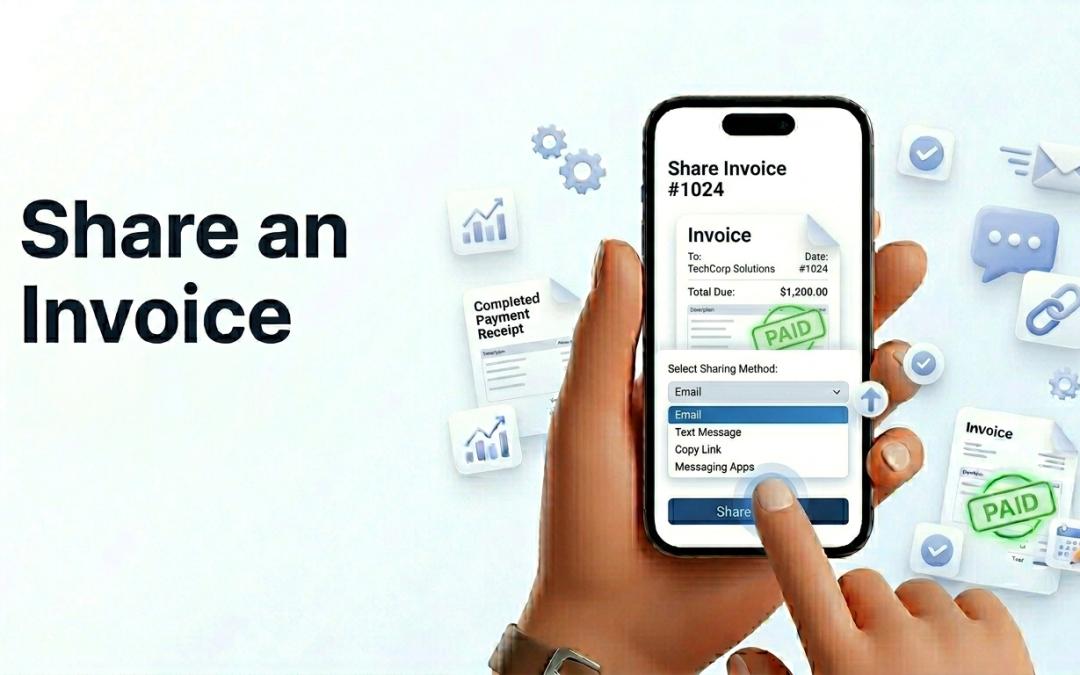
Sharing an invoice on Ledgar is easy from your phone. On mobile, invoice actions are placed inside the 3-dot menu on each invoice card, and one of those actions is Share. When you tap it, Ledgar opens a Share & Export screen with options to send the invoice by email, share it on WhatsApp, download it as a PDF, or export it as a CSV file.
If an invoice has already been fully paid, Ledgar can treat the file as a receipt instead of an invoice in the share and download actions.
What you can do from the Share & Export screen
When you open the share options for an invoice, Ledgar gives you four choices:
- Email (PDF Invoice or Receipt)
- WhatsApp (PDF Invoice or Receipt)
- Download PDF
- Download CSV
These options are especially useful on mobile because you can send or download the invoice without leaving the invoice list.
How to share an invoice from your phone
1. Open the Invoices page
Open Ledgar on your phone and go to Invoices. Find the invoice you want to share in your invoice list.
2. Tap the 3-dot menu
On mobile, the invoice card uses a 3-dot overflow menu for actions. Tap that button on the invoice you want to share.

3. Tap “Share”
From the menu, tap Share. This opens the Share & Export screen for that invoice.

How to send an invoice by email
1. Open the Share & Export screen
After tapping Share, choose Email (PDF Invoice). If the invoice has already been fully paid, the option may appear as Email (PDF Receipt) instead.
2. Let Ledgar generate the PDF
Ledgar generates a PDF version of the invoice before sending it. It uses the invoice details, client details, and your business details from Settings when building the file.
3. Send the email
Ledgar opens the email client on your device with the invoice attached and the customer’s email address pre-filled. You can edit the mail before sending it.

How to share an invoice on WhatsApp
1. Open the Share & Export screen
Tap WhatsApp (PDF Invoice). If the invoice is already paid, the option may display as WhatsApp (PDF Receipt).
2. Let Ledgar prepare the file
Ledgar generates the PDF first, then prepares it for sharing.
3. Share the invoice
On the native mobile app, Ledgar shares the PDF as a real attachment. In the web flow, it opens WhatsApp with a link to the generated file.

How to download an invoice as PDF
1. Open the Share & Export screen
Tap Download PDF from the invoice’s share options.
2. Wait for the PDF to be prepared
Ledgar generates the invoice PDF before opening or downloading it.
3. Save or open the file
On the native mobile app, Ledgar tries to open the PDF in your device viewer. On the web, it downloads the file through the browser.
How to export an invoice as CSV
1. Open the Share & Export screen
Tap Download CSV.
2. Download the CSV file
Ledgar exports the invoice data into a CSV file that includes:
- item name
- quantity
- unit price
- net amount
- subtotal
- VAT
- total
- paid amount
- balance
This is helpful if you want a spreadsheet-friendly version of the invoice.
[Insert screenshot: Download CSV option]
What Ledgar includes in the shared invoice
When Ledgar creates the invoice PDF, it uses the invoice details and can also include your business information from Settings, such as:
- business name
- contact email
- business address
- city
- state
- country
- logo
That is one reason it is a good idea to complete your business profile before sharing invoices.
Helpful mobile tips
On your phone, the fastest way to share an invoice is to stay on the invoice card, tap the 3-dot menu, and use Share from there. This keeps everything within one simple mobile flow.
If you want the customer to receive a polished document, choose Email or WhatsApp. If you want a copy for yourself, choose Download PDF. If you need the invoice in spreadsheet form, choose Download CSV.
Troubleshooting
I cannot find the Share option
On mobile, the Share action is inside the 3-dot menu on the invoice card.
The email option is not working as expected
Ledgar uses the client email attached to the invoice when sending the PDF. Make sure the client record has the correct email address saved.
Why does it say “Receipt” instead of “Invoice”?
If the invoice is already fully paid, Ledgar may treat the exported file as a receipt in the share and download options.
I want a file I can open on my phone
Use Download PDF. On the native app, Ledgar attempts to open the PDF in your device viewer.
I want a spreadsheet version
Use Download CSV. The CSV export includes item rows and invoice totals.
Final thoughts
Ledgar makes invoice sharing very mobile-friendly. In just a few taps, you can email an invoice, send it through WhatsApp, open a PDF, or export a CSV version right from your phone. The 3-dot menu and Share & Export screen keep the process simple and easy to use on smaller screens.